Saturday, July 13, 2013

Download Google Translate For Windows


 Input Tools for Windows

Type anywhere in your language

Google Input Tools for Windows is an input method editor which allows users to enter text in any of the supported languages using a Latin (English / QWERTY) keyboard. Users can type a word the way it sounds using Latin characters and Google Input Tools for Windows will convert the word to its native script. Available input tools include transliteration, IME, and on-screen keyboards.
Google Input Tools for Windows is currently available for 22 different languages: Amharic, Arabic, Bengali, Persian, Greek, Gujarati, Hebrew, Hindi, Kannada, Malayalam, Marathi, Nepali, Oriya, Punjabi, Russian, Sanskrit, Serbian, Sinhala, Tamil, Telugu, Tigrinya and Urdu.  


Smart, easy to use and intuitive!

Choose your languages

  •    
  •  
  •    
  •  
  •    
  •  
  •    
  •  
  •    
  •  
  •    
  •  
  •    
  •  
  •    
  •  
  •    
  •  
  •    
  •  
  •    
 
Requires Windows 7/Vista/XP (32-bit/64-bit)
Installation instructions

Features :
  • Offline Support

    No internet connection is required.
  • Word Completions

    Dictionary-based word completions for prefixes.
  • Personalized Choices

    Remembers user corrections along with macro and canonical support.
  • Easy Keyboard

    Dictionary-enabled keyboard to enter rare and complex words.
  • Quick Search

    Single-click web search for highlighted words.
  • Cool Customizations

    Customize candidate window size, display fonts and more.


Download & Installation Procedure:

To download and install, follow these steps:
  1. On the " download " page, select the languages by checking the checkboxes. More than one language of input tools can be installed on the same client machine.
  2. Check the checkbox before "I agree to the Google Terms of Service and Privacy Policy.", and click "Download" button to download installer.
  3. Run the installer after download completed, and follow the instructions on screen.
Note: Only one instance of the Google Input Tools will be installed per machine, but the configuration can be set differently for each user.

Configuration:

To use Google Input Tools with other applications, first open the application and then select the input tool. Google Input Tools can be opened by clicking on the language bar on the desktop, then selecting the input tool language icon. Alternatively, input tools can be enabled using a shortcut key if it has been configured previously. To close an input tool, change the language in language bar, right-click on the current application to see whether it supports 'Close IME' popup menu option, or just close the current application).

Displaying Language Bar

On the desktop, right-click on the taskbar, then select Toolbars → Language bar
Language Bar

Enabling Language Bar

If the 'Language bar' option is not visible in the 'Toolbars' menu, it needs to be enabled through the Control Panel:

Windows 7/Vista

  1. Navigate to the Control Panel → Regional and Language Options → Keyboard and Languages tab
  2. Click on the Change keyboards… button and open the Text services and input languages dialog
  3. Navigate to Language Bar tab
  4. Enable the radio button Docked in the taskbar under the Language Bar section
  5. Apply all settings, then try to display the language bar as described in the previous section.

Windows XP

  1. Go to Control Panel → Regional and Language Options → Languages tab → Text services and input languages (Details)→ Advanced tab
  2. Make sure that under System configuration, the option Turn off advanced text services is not checked.
  3. Go to Control Panel → Regional and Language Options → Languages tab → Text services and input languages (Details)→ Settings tab
  4. Click Language Bar
  5. Select Show the Language bar on the desktop. Click OK.
  6. Go to Control Panel → Regional and Language Options → Languages Tab
  7. Make sure that the option Install files for East Asian languages is checked in the checkboxes. This requires installation of system files and the system will prompt for you to insert the Operating System Disc.
  8. If you are going to install IME for Indic languages or right-to-left languages, also make sure that the option Install files for complex scripts and right to left languages is checked in the checkboxes. This requires installation of system files and the system will prompt for you to insert the Operating System Disc.
  9. Apply all settings and try to display language bar as described in the previous section.

Input Tools Shortcut

A shortcut key sequence can be applied to input tools, which can be used to quickly enable them for any in-focus application. To set up a shortcut, follow these steps:

Windows 7/Vista

  1. Control Panel → Regional and Language Options → Keyboard and Languages tab
  2. Click on Change keyboards… button to open Text services and input languages dialog
  3. Navigate to General tab
  4. If Google [Language] Input is not listed in Installed Services box, then click Add; in the Add Input language dialog box, go to the language for which you want to enable the input tools in the languages tree and expand it. Check the checkbox next to Google [Language] Input in the list.
  5. Navigate to Advanced key settings tab
  6. In Hot keys for input languages, select To [Language] - Google Input Tools
  7. Press Change Key Sequence
  8. Select Enable Key Sequence
  9. Select a key sequence, such as Left ALT + SHIFT + Key 1
  10. Apply all changes
  11. Test the changes - open an application and press Left ALT + SHIFT + Key 1 (or your custom shortcut) and the input tool should open.

Windows XP

  1. Control Panel → Regional and Language Options → Languages tab → Text services and input languages (Details) →Settings Tab
  2. If either [Language] or Google [Language] Input is not listed in the Installed Services box, then click Add and in the Add Input language dialog box select [Language] in Input language and Google [Language] Input in Keyboard layout/IME. Click OK
  3. Press Key Settings
  4. In Hot keys for input languages, select Switch to [Language]-Google [Language] Input
  5. Press Change Key Sequence
  6. Select Enable Key Sequence
  7. Select a key sequence, such as Left ALT + SHIFT + Key 1
  8. Apply all changes
  9. Test the changes - open an application and press Left ALT + SHIFT + Key 1 (or your custom shortcut) and the input tool should open.

Features

Status window

When Google Input Tools is enabled for an application, it will display a status window on the screen. By default this window will be placed at the bottom-right corner of the desktop, but can be dragged to any other part of the screen as well. The status window contains configuration options for the currently selected input tool. It includes three to five icons (depending on the language and features available), with the application icon at the far left. Next to the application icon, in order, are the Input Tools language indicator, the keyboard button (not present for some languages), the canonical mode button (only present if you have canonical schemes associated with the input tool) and the menu button.
Status window

Edit window (Candidate list)

When Input Tools is enabled for an application, it displays a window with the typed text and the corresponding word choices in the input language. In the below example, user has typed 'googl' and the input tool has displayed five choices (numbered 1 to 5). This window is sometimes called a 'candidate list'.
Edit window

Navigation and selection

The currently selected (highlighted) candidate in the edit window is the active choice. The active choice can be changed by using theBOTTOM-ARROW or TAB keys to move down the selection, or the UP-ARROW or SHIFT + TAB keys to move up. To select one of the choices for input, use the ENTER key which inserts the active choice at the current cursor position. Using the SPACE key or any otherPUNCTUATION CHARACTER also inserts the active choice, along with the typed punctuation character (unless the punctuation character matches one or more candidate suggestions). To insert any candidate, even if not the active choice, type its position number as in: CTRL + [choice_number].
Navigation

Word completions

The choices displayed in edit window will appear in either BLACK or BLUE. Literal matches for what was typed are displayed in BLACK, and will always be grouped in front. If there are better dictionary-based word completions for what was typed, those choices are displayed in BLUE and placed behind.

Paging

The input tools only display five choices in the edit window by default (these five choices comprise a page). If there are more candidates, additional choices are displayed on the next page. To page up or down, use the small arrow buttons at the right side of the edit window, or use the Page Up and Page Down keys. Using the arrow or TAB keys to navigate choices will also move to the next or previous page when the active choice is at the start or end of the edit window. You can configure the number of choices displayed per page by clicking the status window's menu button.
Paging

Search

Clicking on the Google logo in the edit window will search the web for the active/highlighted choice using Google.com. Search can also be triggered for any non-active choice by right-clicking, and then clicking the Search… option.
Search

User cache

In some circumstances, the initial active choice is the best option (in the example below, the second choice was the desired option).
User cache
To make input easier over time, Google Input Tools remembers previous selections and improves the order of candidates. To share this information across all applications for a user, this personalization is maintained for each user account on the computer. This personalization can be disabled by using the 'Disable User Cache' option, available from the menu button on the status window. Note that caching (personalization) does not apply for word completions shown in BLUE, only for word choices shown in BLACK.
User cache

Switch to English

The input tools can be switched on or off easily, allowing fast changes between typing in the input tool language and typing in English. To enable or disable the current input tool, click the input tool language button in the status window or use the keyboard shortcuts CTRL + G orF12.
Toggle language

Keyboard

For some rare or complex words, the input choices given may not include the intended word or phrase. In these situations, the flexible keyboard allows input of any possible word. To open the flexible keyboard, click the keyboard button on status window or by using the keyboard shortcut CTRL + K. To enter characters, you can either type on your physical keyboard or use the mouse to pick on the flexible keyboard. You can hide/show the on-screen keyboard by clicking the up/down arrow on status window. It can be closed by clicking the keyboard button again on status window, or by using the shortcut CTRL + K or ESC.
Keyboard
Keyboard

Customization

You can customize many features in the Google Input Tools menu. Options available through the popup menu in the status window are:
  • Change or activate one of the available canonical schemes (available only if there is at least one scheme in the Schemes directory).
  • Select the font and size to be used to display candidates in the edit window (Suggestion Font).
  • Select the font and size to be used to display English/Latin characters inside the edit window.
  • Set the page size for the edit window (to restrict the number of choices offered).
  • Enable or disable the user cache.
  • Add/Edit or Delete macros.
  • Information about Google Input Tools, including current version.
  • Help documentation, which links to this page.
Customization

Special cases

There are some special cases in how the input tools behave for some characters in some languages:
  • Example in Arabic for the special case of a SPACE, where it is part of the typed word:Space special
  • Example in Arabic for the special case of PUNCTUATION, where it is part of the typed word:PUNCTUATION special
  • Example in Greek for the special case of CAPITALIZATION, where the first character in uppercase retains its casing:Camelcase special
  • Example in Greek for the special case of CAPITALIZATION, where an all uppercase word retains its casing.Camelcase special
  • Example in Greek for the special case of DIGITS, where the number is converted digits instead of its whole value:Digit special

Uninstall :

To uninstall, follow these steps:
  1. Click on the "Start" menu.
  2. Select "Control Panel" and then go to"Add or Remove Programs".
  3. To uninstall all languages including the framework:
    • In the program list, select the "Google Input Tools " then click on "Change/Remove" button.
    • In the "Uninstall Google Input Tools" dialog box, click "Yes".
    • You need to restart computer to make it take effect.
  4. To uninstall one language:
    • In the program list, select the "Google Input [Language] " then click on "Change/Remove" button.
    • In the "Uninstall Google Input [Language]" dialog box, click "Yes".
                      Click hear to Download Google Tamil Input Setup.exe
Note : Please share this post to your friends... Thank you.

Friday, July 12, 2013

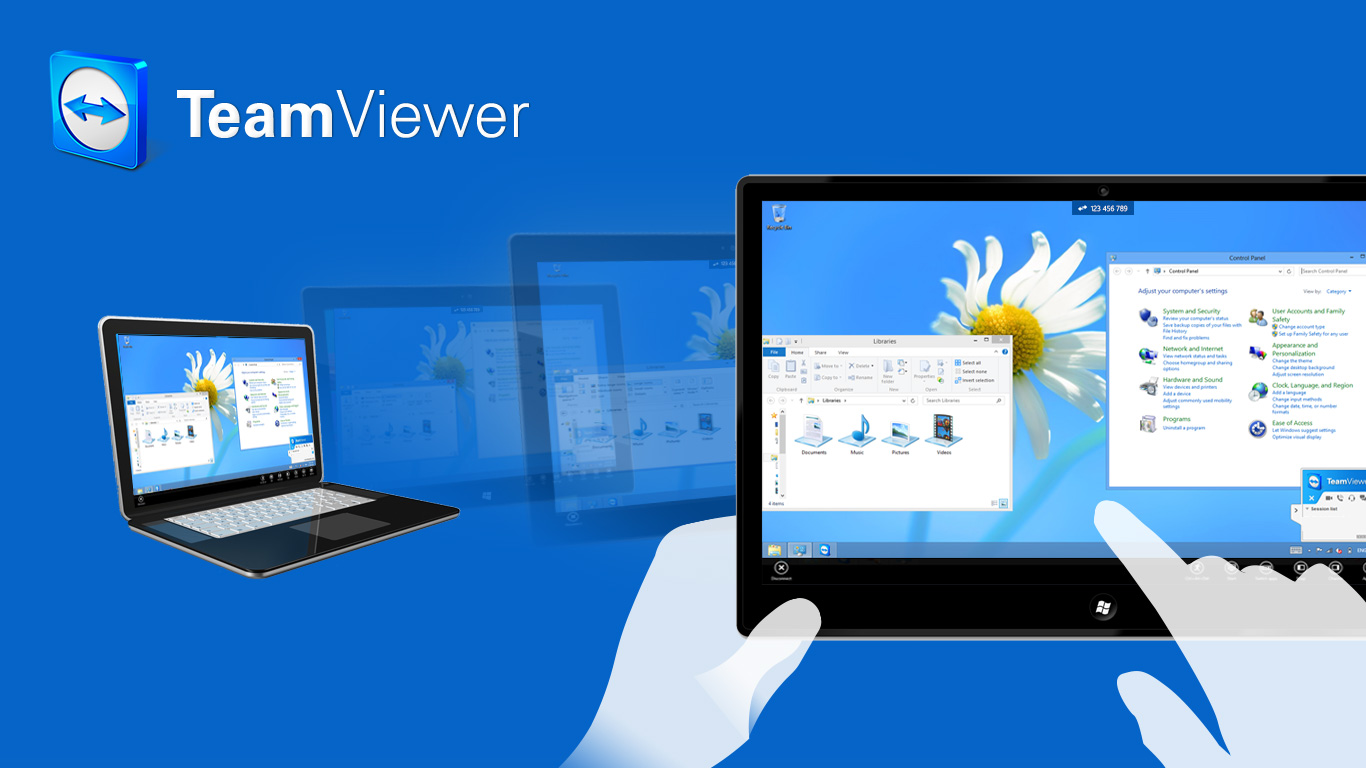
TeamViewer 8 final for Windows and Mac and Android


TeamViewer 8 final for Windows and Mac and Android OS.                                         TeamViewer - the All-In-One Solution for Remote Access and Support over the Internet. TeamViewer establishes connections to any PC or server all around the world within just a few seconds.


To download for windows OS (5.54 MB) ..Click here..

To download for Mac OS (14.6 MB) || Click here ||

To download for  Android (10.4 MB) :: Click here :: 

New features
  • Session handover
  • Comment on sessions
  • Group sharing
  • Remote printing
  • Schedule online meetings easily in Microsoft Outlook
  • Session recording, including sound and video
  • Remote sound and video
  • Remote account logout
  • Automatically log out of operating systems after remote access

Completely new: TeamViewer Management Console
  • User management
  • Log every support connection
  • Web-based connections
Special note for Windows 8 users
  • Modern Multi-Touch gestures
  • Improved Windows 8 support
Special note for Mac users
  • Retina support
  • QuickSupport with your TeamViewer account data

To download for windows OS (5.54 MB) ..Click here..

To download for Mac OS (14.6 MB) || Click here ||

To download for  Android (10.4 MB):: Click here :: 

Note : Share this post to your Friends Thank you.

Download AVG 2013 with serial key for free

Download AVG 2013 with serial key for free


AVG Internet Security 2013

Our best virus protection - now with QuickTune for a faster PC

Detects and stops viruses, threats and malware

You get: AntiVirus, AntiMalware (AVG Resident Shield), 
AVG Anti-Rootkit, AVG Email Scanner, AVG Protective 
Cloud Technology, AVG Community Protection Network, 
AVG LinkScanner® Surf-Shield, AVG Social Networking Protection

This AVG 2013 Internet security antivirus is valid up-to 2018.

                            !----click here to Download----!

Serial Key(valid up-to 28 Feb 2018) :-

1) 8MEH-RF3M-BZ7CJ-9LUAR-ST99N-CEMBR-ACED
2) 8MEH-RGM33-K474L-6FGRR-8RR7K-UEMBR-ACED
3) 8MEH-RJXR4-2CKYP-2GB3A-DBMAD-PEMBR-ACED
4) 8MEH-RMXLW-HN44A-BABPA-S9NQF-PEMBR-ACED
5) 8MEH-RNZLL-2Y4QX-79PPA-MMOKE-AEMBR-ACED
6) 8MEH-RREY3-L2LQA-LUMOR-UDTZ4-6EMBR-ACED
7) 8MEH-RREY3-L2LQA-LUMOR-UJXN3-6EMBR-ACED
8) 8MEH-RW2ZU-29S4F-26QCR-WT482-BEMBR-ACED


                                     !----click here to Download----

Note : Share this post to your Friends Thank you.

Windows 8 activator free Download


To activate your windows 8 for lifetime use windows 8 activator 

To download Windows 8 activator for free 

Instruction:

1.Run as administrator

2.Wait for the process and dont do nothing

3.It restarts automatically--!!!!
----
!!!Then windows 8 will be activated!!!


DOWNLOAD LINK 2

DOWNLOAD LINK 3

Note : Share This Post To your Friends....


Internet Download Manager 6.16 Build 2 Final Incl Patch

Internet Download Manager (IDM) is a tool to increase download speeds, resume and schedule downloads. Comprehensive error recovery and resume capability will restart broken or interrupted downloads due to lost connections, network problems, computer shutdowns, or unexpected power outages. Simple graphic user interface makes IDM user friendly and easy to use. Internet Download Manager has a smart download logic accelerator that features intelligent dynamic file segmentation and safe multipart downloading technology to accelerate your downloads. Unlike other download managers and accelerators Internet Download Manager segments downloaded files dynamically during download process and reuses available connections without additional connect and login stages to achieve best acceleration performance.


Download IDM 6.16 (4.94 MB)

Download IDM 16.6.2 With Patch (5.27 MB)

Enjoy.....

Google Transliteration IME Input Tools for 22 different languages:


Google Transliteration Software  IME Input Tools for 22 different languages:

Google Input Tools for Windows

Type anywhere in your language

Google Input Tools for Windows is an input method editor which allows users to enter text in any of the supported languages using a Latin (English / QWERTY) keyboard. Users can type a word the way it sounds using Latin characters and Google Input Tools for Windows will convert the word to its native script. Available input tools include transliteration, IME, and on-screen keyboards. it will work offline.
Google Input Tools for Windows is currently available for 22 different languages: Amharic, Arabic, Bengali, Persian, Greek, Gujarati, Hebrew, Hindi, Kannada, Malayalam, Marathi, Nepali, Oriya, Punjabi, Russian, Sanskrit, Serbian, Sinhala, Tamil, Telugu, Tigrinya and Urdu.  


Smart, easy to use and intuitive!

Choose your languages

  •  
  •  
  •  
  •  
  •  
  •  
  •  
  •  
  •  
  •  
  •  
 
Requires Windows 7/Vista/XP (32-bit/64-bit)
Installation instructions

Features :
  • Offline Support

    No internet connection is required.
  • Word Completions

    Dictionary-based word completions for prefixes.
  • Personalized Choices

    Remembers user corrections along with macro and canonical support.
  • Easy Keyboard

    Dictionary-enabled keyboard to enter rare and complex words.
  • Quick Search

    Single-click web search for highlighted words.
  • Cool Customizations

    Customize candidate window size, display fonts and more.


Download & Installation Procedure:

To download and install, follow these steps:
  1. On the " download " page, select the languages by checking the checkboxes. More than one language of input tools can be installed on the same client machine.
  2. Check the checkbox before "I agree to the Google Terms of Service and Privacy Policy.", and click "Download" button to download installer.
  3. Run the installer after download completed, and follow the instructions on screen.
Note: Only one instance of the Google Input Tools will be installed per machine, but the configuration can be set differently for each user.

Configuration:

To use Google Input Tools with other applications, first open the application and then select the input tool. Google Input Tools can be opened by clicking on the language bar on the desktop, then selecting the input tool language icon. Alternatively, input tools can be enabled using a shortcut key if it has been configured previously. To close an input tool, change the language in language bar, right-click on the current application to see whether it supports 'Close IME' popup menu option, or just close the current application).

Displaying Language Bar

On the desktop, right-click on the taskbar, then select Toolbars → Language bar
Language Bar

Enabling Language Bar

If the 'Language bar' option is not visible in the 'Toolbars' menu, it needs to be enabled through the Control Panel:

Windows 7/Vista

  1. Navigate to the Control Panel → Regional and Language Options → Keyboard and Languages tab
  2. Click on the Change keyboards… button and open the Text services and input languages dialog
  3. Navigate to Language Bar tab
  4. Enable the radio button Docked in the taskbar under the Language Bar section
  5. Apply all settings, then try to display the language bar as described in the previous section.

Windows XP

  1. Go to Control Panel → Regional and Language Options → Languages tab → Text services and input languages (Details)→ Advanced tab
  2. Make sure that under System configuration, the option Turn off advanced text services is not checked.
  3. Go to Control Panel → Regional and Language Options → Languages tab → Text services and input languages (Details)→ Settings tab
  4. Click Language Bar
  5. Select Show the Language bar on the desktop. Click OK.
  6. Go to Control Panel → Regional and Language Options → Languages Tab
  7. Make sure that the option Install files for East Asian languages is checked in the checkboxes. This requires installation of system files and the system will prompt for you to insert the Operating System Disc.
  8. If you are going to install IME for Indic languages or right-to-left languages, also make sure that the option Install files for complex scripts and right to left languages is checked in the checkboxes. This requires installation of system files and the system will prompt for you to insert the Operating System Disc.
  9. Apply all settings and try to display language bar as described in the previous section.

Input Tools Shortcut

A shortcut key sequence can be applied to input tools, which can be used to quickly enable them for any in-focus application. To set up a shortcut, follow these steps:

Windows 7/Vista

  1. Control Panel → Regional and Language Options → Keyboard and Languages tab
  2. Click on Change keyboards… button to open Text services and input languages dialog
  3. Navigate to General tab
  4. If Google [Language] Input is not listed in Installed Services box, then click Add; in the Add Input language dialog box, go to the language for which you want to enable the input tools in the languages tree and expand it. Check the checkbox next to Google [Language] Input in the list.
  5. Navigate to Advanced key settings tab
  6. In Hot keys for input languages, select To [Language] - Google Input Tools
  7. Press Change Key Sequence
  8. Select Enable Key Sequence
  9. Select a key sequence, such as Left ALT + SHIFT + Key 1
  10. Apply all changes
  11. Test the changes - open an application and press Left ALT + SHIFT + Key 1 (or your custom shortcut) and the input tool should open.

Windows XP

  1. Control Panel → Regional and Language Options → Languages tab → Text services and input languages (Details) →Settings Tab
  2. If either [Language] or Google [Language] Input is not listed in the Installed Services box, then click Add and in the Add Input language dialog box select [Language] in Input language and Google [Language] Input in Keyboard layout/IME. Click OK
  3. Press Key Settings
  4. In Hot keys for input languages, select Switch to [Language]-Google [Language] Input
  5. Press Change Key Sequence
  6. Select Enable Key Sequence
  7. Select a key sequence, such as Left ALT + SHIFT + Key 1
  8. Apply all changes
  9. Test the changes - open an application and press Left ALT + SHIFT + Key 1 (or your custom shortcut) and the input tool should open.

Features

Status window

When Google Input Tools is enabled for an application, it will display a status window on the screen. By default this window will be placed at the bottom-right corner of the desktop, but can be dragged to any other part of the screen as well. The status window contains configuration options for the currently selected input tool. It includes three to five icons (depending on the language and features available), with the application icon at the far left. Next to the application icon, in order, are the Input Tools language indicator, the keyboard button (not present for some languages), the canonical mode button (only present if you have canonical schemes associated with the input tool) and the menu button.
Status window

Edit window (Candidate list)

When Input Tools is enabled for an application, it displays a window with the typed text and the corresponding word choices in the input language. In the below example, user has typed 'googl' and the input tool has displayed five choices (numbered 1 to 5). This window is sometimes called a 'candidate list'.
Edit window

Navigation and selection

The currently selected (highlighted) candidate in the edit window is the active choice. The active choice can be changed by using theBOTTOM-ARROW or TAB keys to move down the selection, or the UP-ARROW or SHIFT + TAB keys to move up. To select one of the choices for input, use the ENTER key which inserts the active choice at the current cursor position. Using the SPACE key or any otherPUNCTUATION CHARACTER also inserts the active choice, along with the typed punctuation character (unless the punctuation character matches one or more candidate suggestions). To insert any candidate, even if not the active choice, type its position number as in: CTRL + [choice_number].
Navigation

Word completions

The choices displayed in edit window will appear in either BLACK or BLUE. Literal matches for what was typed are displayed in BLACK, and will always be grouped in front. If there are better dictionary-based word completions for what was typed, those choices are displayed in BLUE and placed behind.

Paging

The input tools only display five choices in the edit window by default (these five choices comprise a page). If there are more candidates, additional choices are displayed on the next page. To page up or down, use the small arrow buttons at the right side of the edit window, or use the Page Up and Page Down keys. Using the arrow or TAB keys to navigate choices will also move to the next or previous page when the active choice is at the start or end of the edit window. You can configure the number of choices displayed per page by clicking the status window's menu button.
Paging

Search

Clicking on the Google logo in the edit window will search the web for the active/highlighted choice using Google.com. Search can also be triggered for any non-active choice by right-clicking, and then clicking the Search… option.
Search

User cache

In some circumstances, the initial active choice is the best option (in the example below, the second choice was the desired option).
User cache
To make input easier over time, Google Input Tools remembers previous selections and improves the order of candidates. To share this information across all applications for a user, this personalization is maintained for each user account on the computer. This personalization can be disabled by using the 'Disable User Cache' option, available from the menu button on the status window. Note that caching (personalization) does not apply for word completions shown in BLUE, only for word choices shown in BLACK.
User cache

Switch to English

The input tools can be switched on or off easily, allowing fast changes between typing in the input tool language and typing in English. To enable or disable the current input tool, click the input tool language button in the status window or use the keyboard shortcuts CTRL + G orF12.
Toggle language

Keyboard

For some rare or complex words, the input choices given may not include the intended word or phrase. In these situations, the flexible keyboard allows input of any possible word. To open the flexible keyboard, click the keyboard button on status window or by using the keyboard shortcut CTRL + K. To enter characters, you can either type on your physical keyboard or use the mouse to pick on the flexible keyboard. You can hide/show the on-screen keyboard by clicking the up/down arrow on status window. It can be closed by clicking the keyboard button again on status window, or by using the shortcut CTRL + K or ESC.
Keyboard
Keyboard

Customization

You can customize many features in the Google Input Tools menu. Options available through the popup menu in the status window are:
  • Change or activate one of the available canonical schemes (available only if there is at least one scheme in the Schemes directory).
  • Select the font and size to be used to display candidates in the edit window (Suggestion Font).
  • Select the font and size to be used to display English/Latin characters inside the edit window.
  • Set the page size for the edit window (to restrict the number of choices offered).
  • Enable or disable the user cache.
  • Add/Edit or Delete macros.
  • Information about Google Input Tools, including current version.
  • Help documentation, which links to this page.
Customization

Special cases

There are some special cases in how the input tools behave for some characters in some languages:
  • Example in Arabic for the special case of a SPACE, where it is part of the typed word:Space special
  • Example in Arabic for the special case of PUNCTUATION, where it is part of the typed word:PUNCTUATION special
  • Example in Greek for the special case of CAPITALIZATION, where the first character in uppercase retains its casing:Camelcase special
  • Example in Greek for the special case of CAPITALIZATION, where an all uppercase word retains its casing.Camelcase special
  • Example in Greek for the special case of DIGITS, where the number is converted digits instead of its whole value:Digit special

Uninstall :

To uninstall, follow these steps:
  1. Click on the "Start" menu.
  2. Select "Control Panel" and then go to"Add or Remove Programs".
  3. To uninstall all languages including the framework:
    • In the program list, select the "Google Input Tools " then click on "Change/Remove" button.
    • In the "Uninstall Google Input Tools" dialog box, click "Yes".
    • You need to restart computer to make it take effect.
  4. To uninstall one language:
    • In the program list, select the "Google Input [Language] " then click on "Change/Remove" button.
    • In the "Uninstall Google Input [Language]" dialog box, click "Yes".
                      Click hear to Download Google Tamil Input Setup.exe
Note : Share This Post To your Friends.... Thank you.